
Enable call reporting and build a “Calls from ads” conversion action first. Add a website call conversion using a Google forwarding number if you also run search or display traffic to your site. Neither step matters much, though, until you import CRM outcomes, because that’s the only way to optimize for booked appointments and revenue instead of raw call duration.
Table of Contents
- What Are the Google Ads Call Conversion Types?
- How Do You Set Up “Calls From Ads” Tracking?
- How Do You Track Calls Made to Your Website Number?
- How Do You Import Call Conversions From Your CRM?
- Why Call Volume Isn’t the Same as Call Quality
- How Do You Verify Your Call Tracking Actually Works?
- How Do You Use Call Data to Improve Bidding?
- Practical Example: Capturing Call Outcomes Automatically
- What Marketers Get Wrong About Call Tracking
- A Faster Path to Closed-Loop Call Tracking
- Sources
- FAQ
What Are the Google Ads Call Conversion Types?
Google Ads gives you four ways to count a phone call as a conversion, and picking the wrong one is the most common reason call data looks noisy or incomplete. Each method answers a slightly different question about where the call came from.
Calls from ads track direct taps on the call extension or call asset in a search or Performance Max ad. No forwarding number is needed here, since Google already knows the click originated from the ad itself. This is the fastest method to set up and usually the first one businesses should turn on.
Calls to your website use a Google forwarding number (GFN), sometimes called dynamic number insertion, which swaps your displayed number for a tracking number whenever a visitor arrives from an ad click. This catches people who click through to your site and then dial the number they see on the page, rather than tapping directly from the ad.
Click to call on your website counts taps on a clickable tel: link on mobile, which is a lighter-weight option than full GFN swapping but gives you less detail about call duration or recording.
Imported (offline) call conversions pull outcomes from your CRM or call-tracking platform back into Google Ads after the call ends, according to Google’s own documentation on phone call conversion tracking. Every method above shares one requirement: all of them need call-duration thresholds to filter out short, low-value calls before they count as conversions.
Your decision rule is simple:
- Run search ads with call extensions but no landing page calls? Start with Calls from ads only.
- Send traffic to a site with a visible phone number? Add website call conversions via GFN.
- Book appointments or close sales after the call? You need CRM import, regardless of which of the above you also use.
How Do You Set Up “Calls From Ads” Tracking?
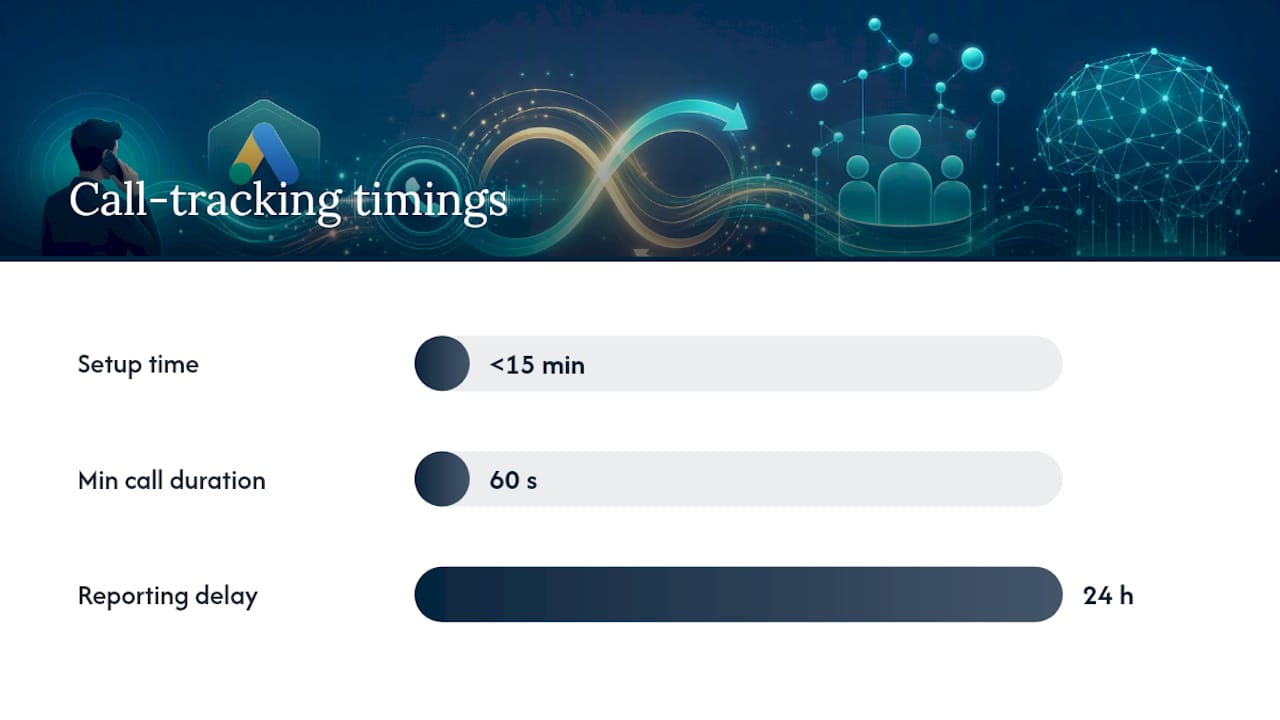
This is the fastest conversion action to launch, and most accounts can have it live in under fifteen minutes.
- Check eligibility first. Call reporting isn’t available in every country, and some verticals face restrictions. Confirm your account and location qualify before building anything on top of it.
- Turn on call reporting in your account settings. This step alone gives you visibility into call volume, even before you build a formal conversion action.
- Create the conversion action. In Conversions, choose “Phone calls,” then “Calls from ads.” Name it something specific, like “Sales Call 60s+,” so it’s identifiable in reporting later.
- Set your minimum call duration. Google defaults to 60 seconds, which is a reasonable starting point for most service businesses.
- Link the conversion action to your call assets (formerly call extensions) at the campaign or account level, so every eligible ad can trigger it.
- Confirm “Include in Conversions” is checked. A call conversion action can exist without counting toward your main conversion column, which will quietly throw off your bidding data if you miss it.
- Test it. Click your own ad from a device outside your office network, place a call that runs past your duration threshold, then check the call details report the next day to confirm it logged.
Google explains the mechanics of call reporting and eligibility, including how AI-assisted call quality signals factor in, in its guide to measuring calls from ads.
Pro Tip: Run your test call at least a full business day before you check reporting. Call conversion data can take up to 24 hours to populate, and checking too early makes a working setup look broken.
One frequent mistake: businesses build the conversion action, confirm it exists, then forget to verify it’s actually attached to their call assets. An orphaned conversion action records nothing.
How Do You Track Calls Made to Your Website Number?
If your ads send clicks to a landing page or homepage where a visitor might call the number they see, you need Google forwarding number tracking. Calls from ads alone won’t catch this traffic, because the visitor never tapped anything inside the ad itself.
Decide if you need it. If your site displays a phone number and gets meaningful ad-driven traffic, GFN tracking is worth the setup time. If your funnel is entirely form-based with no visible number, skip this section.
Setup runs in three stages:
- Create the conversion action. In Conversions, choose “Phone calls,” then “Calls to a phone number on your website.” Set your duration threshold, name it clearly, and save.
- Download your phone snippet. Google generates a small piece of JavaScript tied to that specific conversion action.
- Install it two ways, depending on your setup:
- Through the global site tag placed directly in your site’s header, with the phone snippet added on every page showing your number.
- Through Google Tag Manager, using the phone conversion tag template, tied to the pages where your number appears.
If you go the GTM route, a few details separate a clean install from a broken one:
- Use the national number format (no country code plus sign) in your phone number configuration, since incorrect formatting is one of the most common reasons swaps fail silently.
- Make sure clickable
tel:links on mobile point to the same number GTM is set to swap, not a hardcoded alternative. - Confirm the snippet fires on every page where your number is visible, not just the homepage. A number displayed in a footer that loads on twelve templates needs the snippet live on all twelve.
Testing follows a specific pattern outlined in Google’s setup instructions for tracking calls to a website phone number: click your own ad, land on your site, and confirm the displayed number has changed to a Google forwarding number rather than your real one. If you’re testing repeatedly, clear the browser’s gwcc cookie between attempts, or the swap may not trigger again in the same session.
The most common failure points are boring but costly: the snippet installed on the homepage but not the contact page, a caching layer serving a stale version of the header script, or a tel: link that was hardcoded by a developer months ago and never updated when tracking went in. Check all three before assuming the setup itself is broken.
How Do You Import Call Conversions From Your CRM?
Tracking that a call happened tells you volume. Importing what happened on that call tells you whether your ad spend is working, which is the entire point of closed-loop attribution for phone call conversions.
Google requires a specific set of fields for every imported call conversion:
- Caller’s phone number, matched against the number that triggered the original click
- Call start time, in the time zone your account is configured to use
- Conversion name, matching an offline conversion action you’ve already created in Google Ads
- Conversion value (optional but recommended), so bidding can weigh a closed sale differently than a missed call
Most CRMs export this data through one of two paths: a scheduled upload via Google Sheets, refreshed on a recurring interval, or a direct SFTP feed for higher-volume accounts. Either works, though Sheets uploads are usually the easier starting point for a small team without dedicated technical support.
The mapping step matters more than the upload mechanics. A generic “call answered” tag tells bidding nothing useful. Tag outcomes specifically, like “appointment booked” or “sale closed,” and import only those flagged outcomes as conversions with an assigned value. Google’s own guidance on importing phone call conversions is built around exactly this distinction: unfiltered call counts train automated bidding to chase call volume, not revenue.
Before your first upload, run through this checklist:
- Confirm your CRM captures a unique call ID tied to the original ad click, not just the phone number
- Verify time zones match between your CRM export and your Google Ads account settings
- Test with a small batch of five to ten calls before scheduling a recurring feed
- Assign a dollar value to at least your highest-intent outcome type, even if it’s an estimate
A tool built for CRM phone integration can shorten this setup considerably, since outcome tagging happens automatically at the point of the call rather than requiring manual entry afterward.
Why Call Volume Isn’t the Same as Call Quality
A 12-second hang-up and a 4-minute booking call look identical in a basic call count. Treating them the same is why so many accounts optimize toward the wrong thing without realizing it.
Duration thresholds are your first filter, and practitioner guidance commonly recommends 60 to 90 seconds as a starting point, since calls shorter than that rarely represent a genuine inquiry. Google’s own AI can supplement this by analyzing call recordings to flag likely high-quality leads, though this feature carries eligibility limits by country and requires call recording to be enabled, which itself comes with privacy obligations you need to disclose to callers.
Statistic to keep in mind: Google Ads Help notes that call recording eligibility varies by market, and where recordings aren’t available, duration thresholds remain the primary filter for identifying valuable calls.
Duration and recordings only get you partway, though. The higher-fidelity signal comes from your CRM: an explicit outcome flag like “quoted,” “booked,” or “no-show” tells you far more than how long someone stayed on the line. Voice analytics tools that capture structured outcomes during the call itself, rather than relying on a human to log notes afterward, close that gap without adding work for your team.
Pro Tip: Set two conversion actions instead of one: a duration-based “engaged call” action for early visibility, and a CRM-imported “qualified outcome” action for actual bidding optimization. Running both side by side shows you exactly how much your raw call count overstates real demand.
Once you have reliable outcome flags, assign conversion values that reflect them, and let automated bidding chase the flagged outcomes rather than call length alone.
How Do You Verify Your Call Tracking Actually Works?
Skipping verification is how businesses discover, three months later, that half their calls were never counted. Run this test before trusting any call data for decisions.
- Clear your browser’s
gwcccookie if you’ve tested before, since a cached session can mask a broken swap. - Click your own ad from a device that hasn’t visited your site recently, ideally outside your office network.
- Confirm the displayed number changed to a Google forwarding number, not your regular listed number.
- Place a call that exceeds your duration threshold.
- Check the call details report in Google Ads the next day, not immediately, since data can take up to 24 hours to appear.
- Confirm the conversion recorded under the correct conversion action name, with “Include in Conversions” checked.
If the swap fails, check these in order: tag status in Google Tag Manager (published, not just saved as a draft), whether the phone snippet exists on the specific page you tested, and whether the number format uses the national format rather than an international plus-sign format. Google’s Tag Assistant browser extension will show you whether the tag fired at all, which narrows the problem fast.
If the tag fires correctly but the number never swaps, or if conversions are recording under the wrong action name, that’s usually a developer-level fix, not a Google Ads settings issue. Loop in whoever manages your site’s code, or escalate to Google Ads support if the account-side settings all check out and the problem persists.
How Do You Use Call Data to Improve Bidding?
Raw call counts tell automated bidding to find you more calls. CRM-imported conversion values tell it to find you more of the calls that actually turned into revenue, which is a meaningfully different optimization target.
Once outcomes are flowing in from your CRM, a few configuration choices determine whether that data actually improves performance, as described in detail by Stop Bidding Against Yourself: The Fix For Wasted Ad Spend:
- Set imported call conversions to “Include in Conversions” only if they represent genuine business outcomes, not general call activity, since All Conversions can still track volume separately.
- Assign conversion values that reflect real outcome differences: a booked appointment is worth more than an answered call, and a closed sale is worth more than a booked appointment.
- Segment reporting by campaign and keyword so you can see which traffic sources actually produce qualified calls, not just calls.
- Use the call details report to build audiences from high-quality callers, then layer those signals into future campaign targeting.
Integrating call data with bidding systems also matters for measurement resilience as third-party cookies phase out, since first-party outcome data from your CRM doesn’t depend on cookie-based tracking the way some website conversions do.
Run this as a repeatable cadence, not a one-time setup: test different duration thresholds quarterly, compare performance under value-based bidding versus a simple conversion-count goal, and revisit your outcome tagging whenever your sales process changes. Tightening CRM integration and consistent number swapping across pages are the two factors that most often separate accurate call attribution from noisy, unreliable data.
Practical Example: Capturing Call Outcomes Automatically
Manually tagging every call outcome in a CRM works until call volume grows past what one person can keep up with. This is where AI voice agents change the math.
A typical workflow looks like this: a prospect clicks your ad, calls the forwarding number on your site, and an AI voice agent answers, asks qualifying questions, and books the appointment directly on your calendar. The agent tags the outcome in your CRM the moment the call ends, no manual entry required.
- The agent writes structured outcomes (booked, qualified, not a fit) to your CRM in real time
- Deployment for this kind of setup typically runs 3 to 5 days, not weeks
- Multilingual and after-hours coverage means outcome capture continues even outside business hours
- Those tagged outcomes then flow into a scheduled offline import into Google Ads, closing the loop without extra manual work
What Marketers Get Wrong About Call Tracking
The three mistakes I see most often: businesses count every call as a conversion regardless of duration, they skip CRM import entirely and optimize on call volume alone, and they never re-test their number swap after a site redesign quietly breaks it.
Fix it in three steps over thirty days. Week one, install duration thresholds and verify your swap works. Week two, tag outcomes in your CRM and start a small import batch. Week three, shift your primary conversion goal to imported outcomes and watch how your cost-per-acquisition numbers change, often for the better, once bidding stops chasing hang-ups.
— Jesse
A Faster Path to Closed-Loop Call Tracking
Everything above gets you accurate call data. Turning that data into consistent outcomes still depends on someone (or something) capturing what happened on every single call, and that’s the part most small teams can’t scale with manual tagging alone.

42voice runs AI voice agents that answer calls, qualify leads, and book appointments directly into your calendar, then write the outcome to your CRM the moment the call ends, so the CRM import step described above happens automatically instead of depending on someone remembering to log it. For home services businesses specifically, 42voice’s call automation handles after-hours calls and appointment booking without adding headcount, and most deployments go live in three to five days. If you’re running Google Ads and want your call outcomes flowing cleanly into your conversion data without manual tagging, book a demo and see how it connects to your existing CRM.
Sources
- About phone call conversion tracking – Google Ads Help
- Phone-call conversion tracking — practitioner guidance (Cometly)
FAQ
How Can I Track a Phone Call as a Conversion?
Create a “Calls from ads” conversion action for calls made directly from your ad, or a website call conversion using a Google forwarding number for calls placed after a click-through, then set a duration threshold so short calls don’t count.
What Does Conversion Tracking Mean for Phone Calls?
It means Google Ads counts a phone call as a completed goal, the same way it counts a form submission or purchase, based on call duration, an AI-assessed recording, or an outcome imported from your CRM.
How Do I Check if My Calls Are Being Tracked?
Clear your browser’s gwcc cookie, click your own ad from a fresh session, confirm the number displayed on your site changes to a Google forwarding number, then check the call details report the next day for a logged conversion.
Can I Track Phone Call Conversions in Google Ads?
Yes. Google Ads supports four methods: calls from ads, calls to your website via forwarding numbers, click-to-call taps, and imported CRM outcomes, and most SMBs benefit from combining at least two of these.